
Image workflows
VectorCraft: SVG Editing, Image Tracing, and Reliable Vector Handoffs
VectorCraft is an open-source vector editor from ArtCraft. A generated raster can be a starting reference, but a useful vector deliverable needs clean paths, editable type, and a checked export.
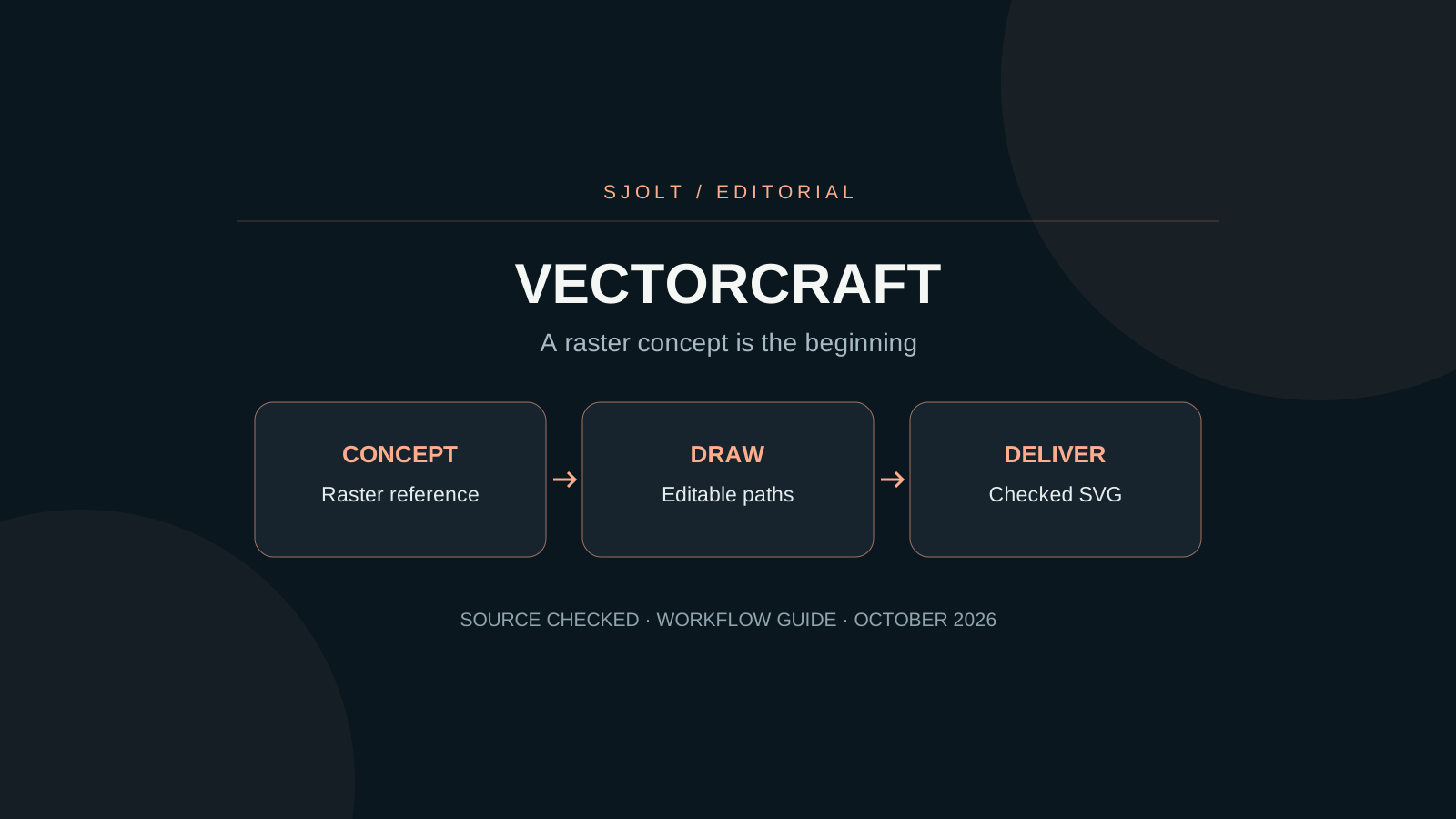
VectorCraft at storytold/vectorcraft is a Rust vector illustration editor from the ArtCraft team. Its official product page describes path editing, shape operations, live effects, image tracing, and SVG/PDF interchange. It is a distinct application from the ArtCraft AI studio.
For a logo or icon job, the useful question is whether the final file contains manageable, editable geometry. An AI image that looks like vector art is still a raster unless it actually contains paths. Use generation to explore a concept, then build and check the delivery document.
Identify the editor and the file you need
The app is under active development. Its README lists gaps including 3D/material tools and parts of advanced typography. Before adopting it for a client file, check the current roadmap and the specific format you need. Do not interpret an overall feature percentage as a guarantee that your receiving application will preserve every effect.
| Deliverable | Keep editable | Check outside the editor |
|---|---|---|
| Small interface icon | A few coherent paths | Edges and negative space at actual display size. |
| Wordmark | Correct type or an approved outlined copy | Spelling, spacing, and font availability. |
| Illustrated poster | Layers, paths, and effect settings | Exported appearance and embedded images. |
| Print handoff | A source document and agreed export | Dimensions, color requirements, and receiving workflow. |
Agree on what “vector file” means before starting. A PDF or SVG can contain a bitmap, and a visually correct preview does not prove that a colleague can change a curve. Ask for the required edit, such as recoloring one shape or adjusting one letter, and test that operation.
Make the concept easy to reconstruct
For concept exploration on SJolt, Nano Banana 2.1 can create a flat image from a prompt. Request a simple silhouette, a small palette, and a plain background if you intend to trace or redraw it. Avoid asking the image model to solve exact typography that you will need to edit later.
A simple two-color illustration of a mountain and rising sun,
clear closed shapes, broad negative space, plain white background.
No gradients, texture, lettering, or mockup.
The image will be used as a reference for manually edited vector paths.This prompt is a proposed starting point, not a tested output. SJolt’s image endpoint returns a generated image, not an editable SVG document. Save the approved raster as a reference, then use the vector editor to decide the actual geometry. For an existing brand, start from authorized artwork and the brand’s geometry rules instead of reconstructing it from a generated approximation.
Trace selectively, then simplify deliberately
VectorCraft’s official page lists image tracing with presets. A preset is a starting conversion, not a measure of path quality. After tracing, inspect one contour at a time: the outside silhouette, important internal openings, and the joins where shapes touch.
- Compare the trace with the raster at the intended display size before zooming in. Preserve features that matter in use.
- Delete isolated specks and accidental small regions; check that intentional holes remain open.
- Reduce unnecessary anchors while preserving the shape. Watch corners and narrow gaps after each simplification.
- Test one-color and reversed versions when the design needs them. A mark that depends on a subtle gradient may fail in a stamp or tiny icon.
- Add the final lettering as deliberate type work, then keep an editable source before making any outlined delivery copy.
If the trace produces hundreds of small fragments, redrawing the few essential shapes may be faster than cleaning every fragment. Count the operations the next editor will need, not merely whether the tracing command completed. Smooth curves that are difficult to adjust are a poor source file.
Choose a trace preset by the source artwork
VectorCraft’s Image Trace report, checked on October 14, measures controlled geometry and color inputs, including blurred and noisy variants. It now distinguishes explicit Shapes, Auto Grouping, and Gradients options and compares enhanced presets with their base versions. These are developer-reported tests, not an independent comparison with Illustrator or a guarantee for your generated image.
Treat those options as separate editing choices. Shapes can turn a fitted outline into a geometric object; Auto Grouping changes how paths are organized; Gradients can represent a detected linear color ramp as a gradient-filled path. Try one option at a time on a copy. Inspect whether a circle was falsely inferred, whether grouped holes still render correctly, and whether a gradient is editable after SVG export. The report’s October 14 noise and soft-edge improvements do not establish that every photographic shading pattern is a linear gradient.
For a flat icon concept, compare a color preset with a simple black-and-white treatment before adding detail. For shaded artwork, judge whether a photo preset creates a useful stylization or just too many editable pieces. Inspect path and anchor counts together with the visible outline; fewer paths help only when important geometry survives.
Use two review scales: the intended display size for readability and a close view for gaps, specks, and unwanted colors near antialiased edges. Export the candidate SVG and open it in a browser. Keep the raster reference beside the vector master so the next editor can distinguish deliberate simplification from a tracing error.
Treat imported documents as a compatibility check
The repository documents SVG and PDF interchange, PDF-compatible .ai files, and a separate legacy Illustrator import path. The October 16 format review also documents legacy version 7 .ai export. None of those paths establishes complete compatibility with every historical Illustrator document. Affinity import remains read-only with limits and warnings; unsupported effects or a preview fallback are different from native editable content.
Open a copy of the source and read the import warnings before editing. Select individual objects, change a small property, save the native document, and reopen it. If the import is only a preview image, it can help you rebuild a design but cannot serve as evidence that the original layer structure survived.
For a team handoff, record the source application version and what you intentionally flattened. A short note saying that a shadow is baked into a bitmap is more useful than sending a nominally vector container that hides that fact.
The October 11 README and format assessment clarify that PSD and PSB input is the merged image, not editable Photoshop layers. A layered output format elsewhere in the feature list does not make that import bidirectional. If you need to change the original type or masks, keep that step in the source editor and bring only the approved composite into VectorCraft.
If file drag-and-drop fails on Linux
The current README documents a native Wayland limitation: dropped files are not delivered by its windowing layer. For an SVG document, try File → Open. To place artwork, copy and paste the file from a file manager. For drag-and-drop, the October 12 documentation provides a persistent choice: set Preferences → Performance → Linux Display Server to X11 (XWayland), then restart the application. Starting it with WAYLAND_DISPLAY= vectorcraft is also documented.
Distinguish this input-path failure from a decoder failure. If the same SVG opens through the menu, repeated format conversion is unlikely to solve the drag-and-drop problem. Record the desktop session and application version with the report, and verify the image or paths that actually arrived before editing.
The README also documents unresponsive drawing-tablet input under KDE Plasma 6.3 or later on Wayland, with the same XWayland workaround. If a pen moves the cursor but does not draw, test the display-server setting before changing the artwork or tracing it again. Record the installed version because these workarounds describe the currently documented build.
Choose legacy AI export only for a tested handoff
VectorCraft’s version 7 AI writer is intended to retain layers, groups and some editable type in a legacy format. Each chosen artboard becomes its own file. The format cannot carry transparency: the documented options flatten or omit transparent images, while objects are written opaque. Type outside Windows-1252 and several other text cases becomes outlines. These limits can change both the look and editability of a logo package.
There is a second distinction in the documentation: a program reading the file’s Illustrator structure can use information that the generated PostScript preview does not draw equivalently. The writer’s prolog renders gradients using their first stop and leaves type to applications reading the format. A generic PostScript preview is therefore not a sufficient acceptance check for text or gradients.
Test one artboard containing a transparent image, a gradient, grouped paths and the actual label characters. Open the result in the recipient’s application, inspect the picture, then edit a label and toggle a group. Keep the native master and an agreed visual reference. Use the handoff format that passes those checks; the source itself says real exchange with users still needs validation.
Verify the exported artifact, not just the canvas
Keep the native document as your working master. Export the requested SVG or PDF separately and open it in the actual destination: a browser for a web icon, the receiving editor for continued illustration, or the print workflow specified by the vendor.
The October 14 format notes report that a failed save now produces a dialog and retains the old file; native-file reopening also restores layout bounds for type inside symbols. These changes matter to delivery because a correct canvas can still leave a stale file on disk or mis-sized reusable artwork after reopening. They are project-reported fixes, not independent reliability measurements.
On a disposable copy, change a visible label and save into a known writable folder. Reopen that exact path and confirm the new label. If saving reports an error, keep the session open, choose a different writable destination and verify it before replacing the delivery copy. For symbol-based icons, also select and resize a reopened instance and inspect its text bounds. A success-looking preview of the old export should never substitute for this file check.
- Check view box or page size, clipping, and empty margins.
- Inspect text after export, especially missing fonts, line wrapping, and outlined copies.
- Check transparency against both light and dark backgrounds.
- Confirm that linked raster references are embedded or delivered as agreed.
- Make one requested edit in the receiving application to verify editability.
If the job is mainly a photographic composite with masks and editable type, PhotoCraft may fit the document better. If its core is scalable paths and geometric reuse, evaluate VectorCraft. Neither application is an SJolt model integration; the connection described here is a reviewed file handoff.
No editor binary was installed and no tracing quality benchmark was performed for this article. These checks define what to test on your own deliverable.
Sources & further reading
Take the next idea into production.
Explore the models, test a workflow in the playground, and use the same request in your application.