
Creative workflows
ArtCraft: The AI Studio, Crafting Apps, and a Useful First Workflow
ArtCraft’s visual AI studio and its separate Crafting Apps solve different parts of a creative job. Choose the tool by the editable document or media file you need to deliver.
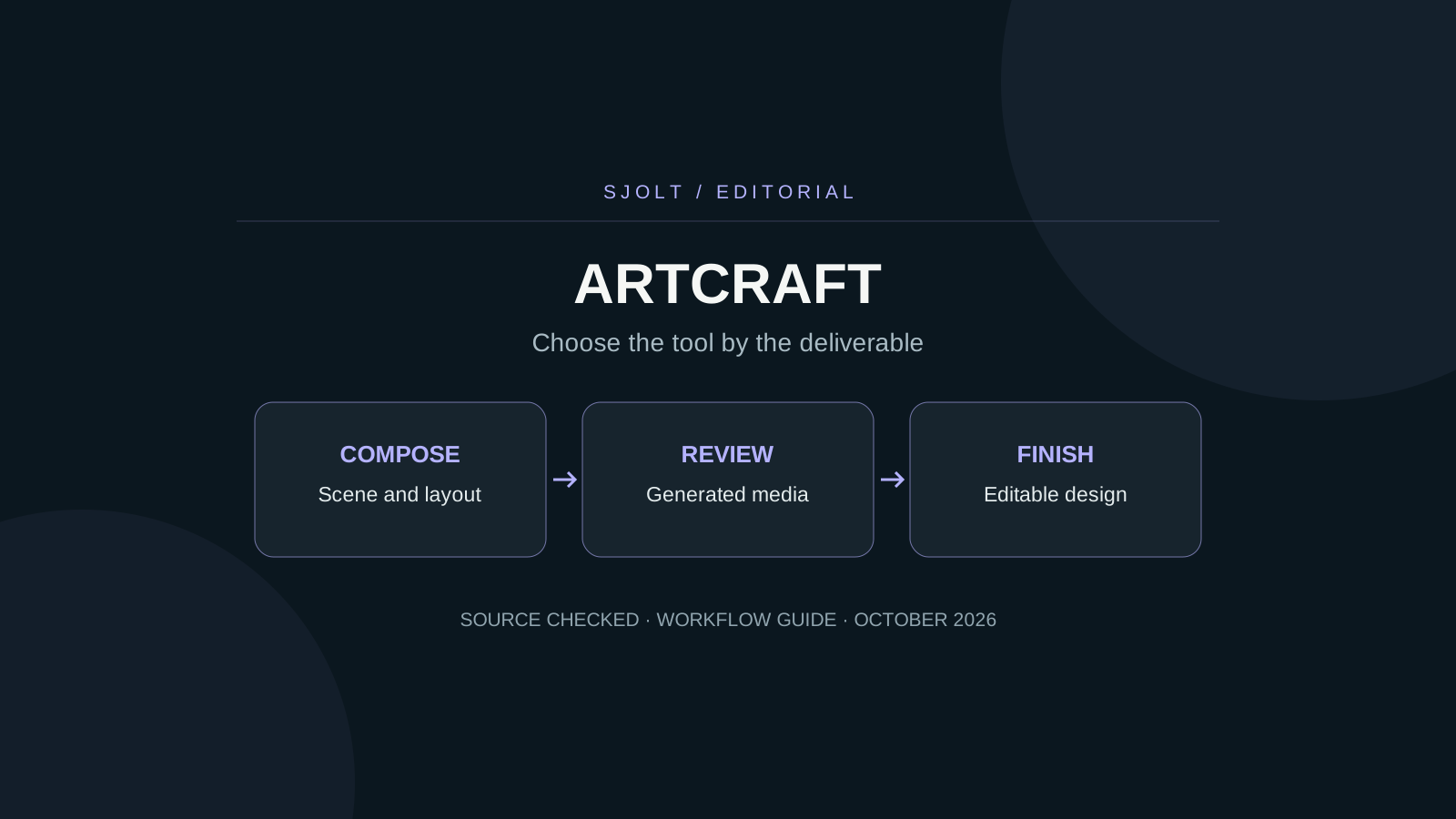
ArtCraft is an AI image and video creation studio from the team behind the storytold GitHub organization. Its repository describes a visual workspace for 2D composition and 3D staging. The same team also publishes the separate Crafting Apps, including PhotoCraft, VectorCraft, FilmCraft, and LightCraft.
If you are trying to find the official product, start at getartcraft.com and follow its own repository and download links. If you are choosing a workflow, first decide whether you need a generated image, an editable design document, a photo library, or a finished video timeline.
GetArtCraft: open the studio or find a desktop editor
GetArtCraft is the domain used by ArtCraft, not a separate model. The official homepage’s “Use on web” link opens app.getartcraft.com. The browser workspace presents image, video, audio, 3D object and world creation, plus background changes; timeline editing and moodboards carry beta labels. These are navigation choices, not a statement that every model or operation is available to every account.
Use the studio link when you want to start a visual AI project. Use the Crafting Apps directory when you want an installable editor such as PhotoCraft or WordCraft, then follow that app’s own download section. Keep the two entry points bookmarked by purpose: opening a desktop editor’s page is not the same as signing into the hosted studio.
For a first visit, choose one deliverable and inspect the available controls before uploading assets. A source image that belongs in an image-edit workflow may not belong in a text-only generation screen. Keep the original file and record the mode used so the exported result can be reproduced or revised.
ArtCraft and Adobe: distinguish an alternative from an affiliation
The search phrase “ArtCraft Adobe” can refer to the familiar workflows offered by the Crafting Apps. The official directory identifies them as apps from the ArtCraft team. FilmCraft’s v0.9.0 README explicitly describes an independent project without Adobe affiliation, sponsorship or endorsement. That statement is preserved in the release tag; the current main-branch README checked October 20 no longer contains the trademark paragraph. Its removal does not establish a new affiliation.
For a migration decision, write down the actual handoff: a layered PSD, a Premiere sequence, or a final rendered image. Then test the relevant editor with that file. FilmCraft currently does not open native Premiere .prproj files; its documented sequence interchange paths include FCP7 XML, AAF and OTIO. PhotoCraft’s action-file preservation and plugin compatibility have separate limits.
Keep the original Adobe document as the master until the receiving artist can both open and revise the transferred copy. Compare fonts, editable layers, effects and media links, not just a screenshot. Decide app by app; success with a flattened image does not establish that an entire creative suite can replace your current production workflow.
Choose the app by the deliverable
| Need | Starting point | File to preserve |
|---|---|---|
| AI scene exploration | ArtCraft studio | Scene setup, references, and approved media. |
| Layered image work | PhotoCraft | Editable document plus an export. |
| Vector illustration | VectorCraft | Paths, text, and native document. |
| Video assembly | FilmCraft | Timeline and original source clips. |
| Photo selection and development | LightCraft | Camera originals and library records. |
| Interface design and prototyping | FigCraft (early alpha) | Editable screen layout and a review export. |
These are different editing jobs, even when the final deliverable is one social post. A campaign can start with a photographed object, explore a new backdrop, add editable lettering, and finish as a short video. Keep the source for each step rather than expecting one flattened output to retain all earlier decisions.
The suite directory labels the apps as early alpha or in development. Treat a successful small project as evidence for that project. It does not establish that every document, codec, font, or plugin from another application will transfer unchanged.
For a campaign with both a landing-page mockup and a hero image, preserve the editable screen layout separately from its raster artwork. Check that the reviewer can change a button label and inspect the intended navigation before accepting the prototype. An exported screenshot is useful for approval but does not establish a working website.
The directory checked on October 14 lists thirteen Crafting Apps, now including FigCraft for interface design and prototyping. FigCraft is marked early alpha. WordCraft, SoundCraft, DeckCraft, CADCraft, and GridCraft are marked in development. Follow each app’s own page and test the document you need; a suite listing does not establish a shared generation API or a verified SJolt connector.
Use 2D composition for a layout problem
ArtCraft’s canvas guide describes drawing, arranging references, and using masks to guide generation. Its separate image-edit guide describes masked changes. Those controls are useful starting points when the main problem is where objects should appear, rather than a lack of descriptive adjectives.
For a square product card, sketch a large product area in the lower half and reserve the upper third for a headline. Use a reference that clearly shows the object’s silhouette. Before generating, decide which visible properties must survive: handle shape, label placement, material, or the number of parts.
Review the result against that layout. An attractive background cannot compensate for a changed product. When an edit affects the wrong area, keep a before-and-after comparison and adjust one control at a time. A claim of precise editing in a product guide should still be checked on the image you plan to use.
Deliverable: square product card
Preserve: object silhouette, material, and label placement
Change: background and light only
Reserve: upper third for editable copy
Reject: invented product text, extra parts, altered logo
Use a 3D scene when camera relationships matter
The official 3D guide describes placing subjects and cameras, posing characters, and changing camera height and focal length before generation. That is a different form of direction from writing a separate prompt for every angle.
Try a two-shot test before planning a full sequence. Set a wide composition, then frame a closer view of the same subject. Record which side the light comes from and where background objects sit. Compare the generated pair for spatial continuity and subject identity; a plausible image in isolation may still disagree with the other shot.
If the images are destined for motion, decide where the camera and subject should begin and end before choosing a video model. A reference image can guide appearance without necessarily fixing the first frame. Read the selected model’s input semantics rather than assuming every image-to-video or reference workflow uses the same controls.
Separate software access from generation spending
ArtCraft publishes subscription credits and credit packs for generation. Its pricing page also says the application can be used without a subscription with your own compute or supported third-party subscriptions. Free source code therefore does not imply unlimited free hosted inference.
Before a batch, check the selected provider, enabled model, output settings, and estimated charge in the application. Treat a disabled model in a repository catalog as unavailable until the product confirms otherwise. Save the settings with the exported result so that a future rerun does not silently use a different service.
For a trial, set a small maximum number of attempts and a concrete acceptance rule. Stop when the composition passes, then finish exact text and layout in an editor. Repeatedly regenerating a complete poster to correct one letter can waste both time and usable design decisions.
Where a separate SJolt workflow fits
SJolt provides programmatic image and video generation for an application you build. ArtCraft provides a visual authoring environment. No built-in SJolt connector for ArtCraft was verified in this review, so do not assume an SJolt API key can be pasted into an arbitrary provider field.
A straightforward boundary is a normal media file. Generate an image through SJolt, wait for the task to finish, save the returned file, and bring that asset into a compatible creative project. Nano Banana 2.1 supports text-to-image and reference-guided image editing on SJolt. Its image-edit request does not expose ArtCraft’s canvas, scene graph, or mask controls.
Choose ArtCraft when visual placement is the part you need to explore. Choose a hosted API when generation must be called from your own service and tracked by task ID. Evaluate the file handoff with one approved asset before building more automation. This guide is based on source review; no ArtCraft binary or paid generation was tested.
Sources & further reading
Take the next idea into production.
Explore the models, test a workflow in the playground, and use the same request in your application.