
Image workflows
PhotoCraft: Open-Source Editing and a Practical AI Image Workflow
PhotoCraft is an early-alpha Rust image editor with layers, PSD support, and automation interfaces. Use a copy of your document to evaluate it before adopting a production workflow.
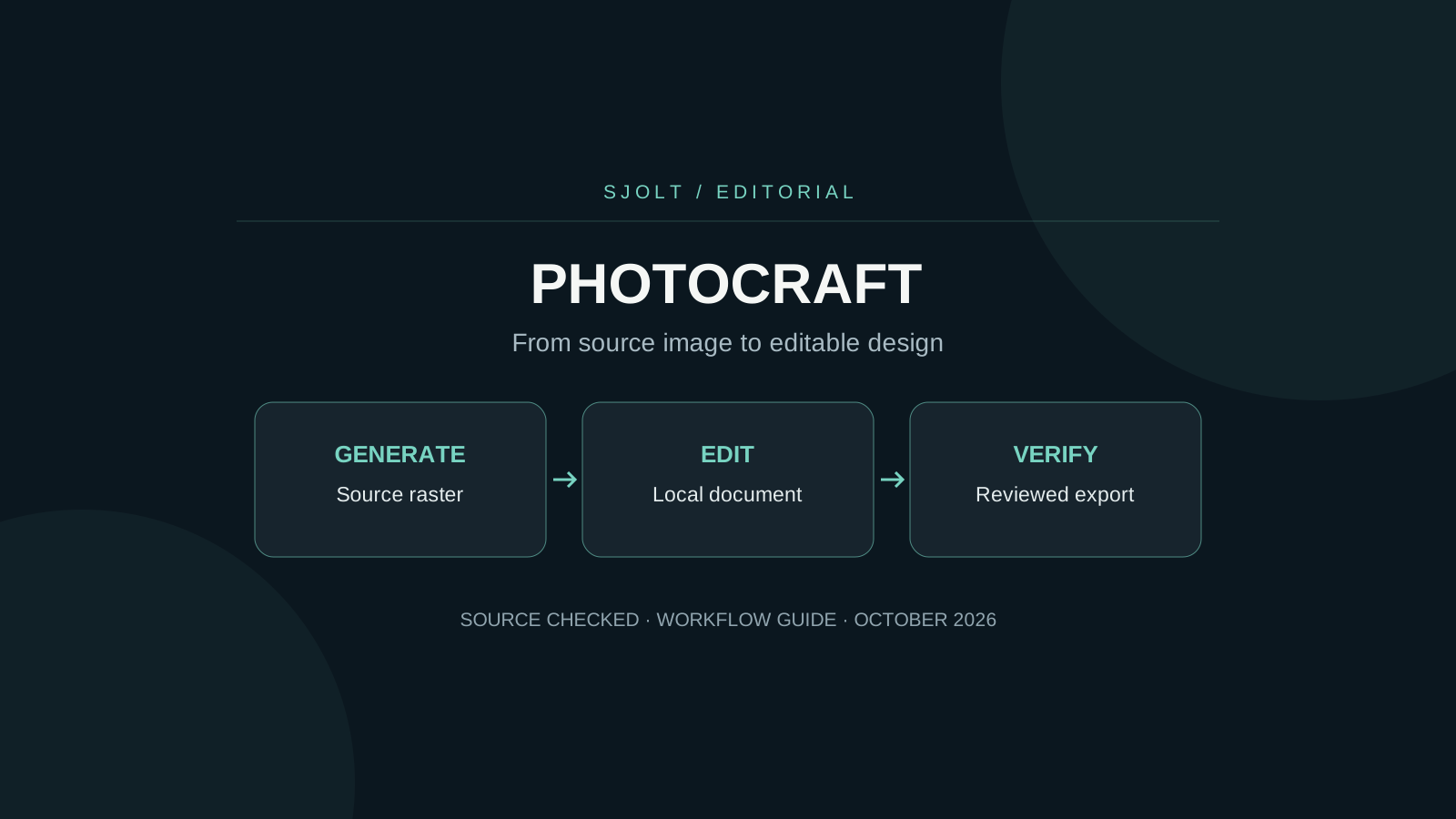
The open-source PhotoCraft editor covered here lives at storytold/photocraft on GitHub. It is a native Rust image editor with layers, masks, text, and PSD support. Its maintainers explicitly call it early alpha and say it is not yet a replacement for everyday professional Photoshop work.
The practical starting point is a copy of one representative document. Check the features that document depends on, then reopen the saved result. AI-generated imagery can be prepared separately through SJolt and brought into your editing workflow as a flat image; PhotoCraft is not an SJolt model or a built-in SJolt integration.
Find the editor, not a similarly named service
Search results also contain unrelated products using the PhotoCraft name. For this Rust editor, follow the repository’s own release and documentation links. Record the repository owner, release version, operating system, and installer filename together. A familiar title alone is not enough to identify the software described in a tutorial.
The project README describes desktop, command-line, JSON control, and MCP access to its command engine. That makes automation worth exploring, but an automation interface and an image-generation model solve different problems. One changes a document; the other produces pixels from instructions or references.
Use the roadmap to decide what to test
The current parity assessment identifies generative AI, typography depth, and Adobe plugin compatibility as gaps. Do not infer an implemented generative-fill backend from an AI-related search result or an agent interface. Read the maintained gap assessment before choosing a workflow that relies on a particular feature.
| Your document needs | First acceptance test | Keep as evidence |
|---|---|---|
| Editable type | Reopen the file and edit the exact text style used in the deliverable. | Font, size, line wrapping, and a comparison export. |
| Masks and adjustment layers | Toggle the relevant layer and compare the saved composite. | Before/after raster exports and layer state. |
| PSD interchange | Save a copy and reopen it in the receiving application. | Both the visible result and remaining editability. |
| A plugin-dependent step | Check the documented plugin architecture before installation. | The exact supported extension and version. |
For a poster, a tiny line-wrap change can matter more than a successful file-open message. For a product composite, the edge of a mask may matter more than the number of tools available. Weight the checks according to the deliverable instead of trying to summarize the entire editor in one percentage.
Test the full PSD round trip
PhotoCraft’s README distinguishes a document round trip from byte-for-byte file preservation: saving through the editor rewrites parts of a PSD. Its corpus results are project-reported tests, not a guarantee for every production document. This article does not repeat those results as an independent benchmark.
- Duplicate a small real project and keep the source untouched. Include the fonts and linked assets it requires.
- Export a reference image in the original authoring application at the final delivery dimensions.
- Open the copy in PhotoCraft, make one necessary edit, and save to a different filename.
- Reopen that saved file in the application that will receive it. Compare rendering, layer editability, masks, and text.
- Only expand to a larger job after the representative document passes.
A flattened export is useful for visual comparison but cannot prove that a colleague can still change the headline. Keep rendering and editability as separate pass/fail checks. If a discrepancy appears, reduce the file to the smallest example that still demonstrates it before changing unrelated settings.
Check import and export fidelity beyond PSD
The October 10 source review adds two useful boundaries. PhotoCraft’s README documents read-only Affinity imports with warnings for unsupported content and no Affinity export. Its codec matrix describes format-dependent bit depth: PNG can preserve 16-bit samples, while JPEG and WebP output are 8-bit. Opening a document and exporting a flat image therefore answer different compatibility questions.
If an Affinity document is the source, retain the original and inspect the reported omissions before making a derivative. For a high-depth image, choose an export format that supports the data you need and read any conversion warnings. A JPEG delivery copy can be appropriate for review without replacing the higher-depth working master.
Check color as well as bit depth. The codec documentation explicitly warns that its CMYK-to-RGB conversion is not color-managed and drops the original CMYK profile. For a color-critical handoff, verify the agreed color conversion in the receiving workflow; do not assume that an export preserving the visible picture also preserves the intended color interpretation.
The codec documentation checked October 21 now describes DDS writing for ordinary 2D textures: uncompressed output or BC1, BC2 and BC3, with an optional mip chain. It excludes writing cubemaps, arrays, BC4–BC7 and DX10-only sRGB formats. Treat this as current source documentation, not proof that every installed release exposes the same export options. For a generated game texture, test the exact receiving engine and compression format.
Version 0.10.0: use PDF as a flattened review copy
PhotoCraft v0.10.0, published October 18 and checked October 19, adds PDF writing through Save As, Save a Copy and the CLI. The release labels PDF support partial: one flattened page with an ICC profile. That output is useful for a visual handoff, but it does not preserve editable layers, live typography or a multi-page layout project.
For a generated background with an editable headline, retain the native layered document and export a separate PDF for approval. Open that PDF in the receiving viewer, check the entire page, and confirm the intended color appearance and dimensions. An embedded profile alone does not prove color agreement across displays or a particular print-production standard.
Ask the reviewer to approve appearance using the PDF and request wording changes against the editable master. Re-export after the text is corrected rather than editing the flattened review copy. This is a proposed acceptance workflow; no PDF was exported from PhotoCraft or certified for printing during this review.
Version 0.11.1: verify the saved copy and its metadata
PhotoCraft v0.11.1, published October 20 UTC and checked October 21 Beijing time, lists changes relevant to handoff: file.saveACopy refuses the document’s own path without overwrite, Save for Web and Quick Export retain EXIF under the All metadata option, and background jobs apply to the layers on which they started. These are release-note claims, not results from an editor test performed here.
Add a save-copy fixture to a campaign workflow. Give the source and delivery copy visibly different names, record the source hash, export the copy and reopen both files. Confirm that the source stayed unchanged and that the copy contains the intended dimensions, color treatment and metadata. A successful command alone does not establish those properties.
For photographed reference material, choose metadata retention deliberately and inspect the resulting file. For a generated background, do not assume that choosing All creates camera information that never existed. Keep provenance in the job record separately from whatever fields the exported image carries.
If an operation continues in the background, note the starting layer and avoid treating the currently selected layer as proof of the destination. After completion, toggle the intended layer and compare the export. This small check is especially useful before applying the same operation to a folder of campaign assets.
Use OpenRaster for a limited layered handoff
The October 11 source review adds OpenRaster (.ora) as a documented read/write option. PhotoCraft preserves pixel layers, nested groups, names, visibility, and opacity, but the format does not carry every native editing feature. Its documentation says text, shapes, fills, and smart objects are saved as rendered pixels; masks are applied, while adjustment layers, layer styles, metadata, and the color profile are omitted.
Use an .ora copy when the receiving artist mainly needs separate painted layers. Keep .pcraft or the original authoring file for editable type and effects. PhotoCraft writes 16-bit layer images for 16- and 32-bit documents, so this exchange is not a preservation format for a 32-bit floating-point master.
Test the actual receiving application: open the exported copy, toggle layers, inspect blend modes, and compare a flattened reference. The project documents Krita-based checks and explicitly says MyPaint and GIMP files have not yet been checked. Shared format support alone does not establish equivalent rendering in every editor.
Check which Krita layers arrived
The October 14 source review finds native Krita .kra and .krz import documented for supported paint layers, groups, blend modes, and transparency masks. Import remains read-only for the Krita format: PhotoCraft suggests OpenRaster for exchange, while its native document preserves the imported working state. This does not restore Krita features that were omitted during import.
The reader reports unsupported vector, filter, fill, file, and clone layers, several mask types, and animation beyond the saved frame. Unsupported document color spaces and floating-point depths can open as a flagged merged preview. A plausible canvas therefore does not prove that the painted layers or animation survived.
Open a duplicate of a representative Krita document and read every warning. Toggle individual paint layers, inspect the first transparency mask, and compare the composite with Krita’s own rendering. Keep the original .kra as the source of truth. If another artist needs editable Krita-specific features, return to that original rather than treating an .ora export as a complete round trip.
Linux: distinguish a failed drop from a failed import
The README checked on October 15 documents a native Wayland drag-and-drop limitation. If a saved source image does not open when dropped, try File → Open or copy the image in the file manager and paste it. If the menu path succeeds, re-encoding the image is unlikely to fix the original input problem.
For drag-and-drop, the project documents XWayland and a persistent Preferences → Performance → Linux display server = X11 setting. It also identifies a tradeoff: at fractional display scales such as 125% or 150%, XWayland can produce a blurred interface because the compositor enlarges a lower-resolution window. Native Wayland remains sharp in that documented case.
Test the same image through the menu at your normal display scale before switching sessions. Judge export sharpness by opening the exported file at its intended size, separately from the appearance of the editor’s menus. Record the app version, session type and scaling factor if you report a problem; those details help distinguish file decoding, canvas display and desktop scaling. No Linux desktop test was performed for this guide.
Generate a source asset on SJolt
Suppose a social post needs an atmospheric background while the final headline must remain editable. Generate the background separately, inspect it, and place the exact text in the editor. SJolt’s Nano Banana 2.1 text-to-image route supports the request below. It is an example checked against the local API contract, not a generation executed for this guide.
curl --request POST 'https://sjolt.ai/sjolt-ai/v1/google/nano-banana-2.1/text-to-image' \
  --header "Authorization: Bearer $SJOLT_API_KEY" \
  --header 'Content-Type: application/json' \
  --data '{"input":{"prompt":"A quiet blue studio backdrop with a pale stone platform in the lower third, soft side lighting, generous empty space above, no text or logos.","aspect_ratio":"4:5","resolution":"2K"}}'
Keep the key on your server. Save data.task_id from the accepted response, then query /sjolt-ai/v1/tasks/YOUR_TASK_ID with the same authorization. Status 0 is running, 1 is succeeded, and 2 is failed. Successful file URLs are in data.output_urls. Download and inspect the finished image before opening it in the editor.
For a revision based on an existing source, use the separate image-edit route and provide image_urls. A generated raster does not contain the source document’s editable text, masks, or layer history. Keep your local document as the place where those production decisions are maintained.
Check imported actions one step at a time
The October 13 review finds a new interoperability option in the current parity assessment: Photoshop Actions (.atn) files can be loaded and saved. It distinguishes mapped events from other events retained verbatim. Retaining an action record does not establish that PhotoCraft can execute every step in it; the same assessment still lists ExtendScript, UXP, and .8BF compatibility as gaps.
For repeated preparation of generated assets, start with an action that performs one visible operation on a copy. Check the imported steps, run it on a disposable document, and compare the export before applying it to a folder. An action depending on a particular layer name, plugin, or source-document state needs its own check.
Keep the original action file and a short record of unsupported steps. Separate file preservation from successful execution and from the final appearance. This lets a team reuse the parts that work without assuming a complete Photoshop automation environment.
Add automation after the manual workflow passes
PhotoCraft’s control protocol documents a loopback listener and token-file authentication. Use the published protocol instructions when connecting a local tool. Do not expose its control port as an unauthenticated remote editing service. This is PhotoCraft’s interface, separate from SJolt’s hosted generation API.
Start with a reversible action such as exporting a copy at a chosen size. Have the script record the input filename, document revision, command parameters, and output path. Review the exported image as well as the command’s success status. Only then expand to operations that alter layers or change multiple documents.
A useful integration boundary is a reviewed asset folder: generation writes candidate images, a person selects one, and an editing script consumes the selected file. That boundary keeps creative selection visible and makes it possible to rerun layout work without paying to regenerate the source asset.
Decide using an actual deliverable
For an experimental social graphic, the current editor may be worth a controlled trial. For a deadline involving complex typography, print handoff, or existing plugins, let the representative-file test determine readiness. Keep another path available until the saved result meets the receiving team’s requirements.
No PhotoCraft binary was installed or benchmarked for this article. The source review establishes the project identity and documented boundaries; your own document test establishes whether it fits your work.
Sources & further reading
- PhotoCraft original repository
- PhotoCraft roadmap
- PhotoCraft control protocol
- SJolt Nano Banana 2.1
- SJolt API documentation
- PhotoCraft codec capabilities and conversion limits
- PhotoCraft current parity assessment
- PhotoCraft OpenRaster interchange
- PhotoCraft Krita import
- PhotoCraft v0.10.0 release
- PhotoCraft v0.11.1 release
Take the next idea into production.
Explore the models, test a workflow in the playground, and use the same request in your application.