
Creative workflows
WordCraft: Open-Source DOCX Editing for Creative Briefs
WordCraft is an open-source word processor with document automation. Use it to review the brief and verify the saved document before turning approved copy into a visual production request.
WordCraft from the ArtCraft team is a Rust word processor at storytold/wordcraft. It opens and saves DOCX documents and offers desktop, command-line, and agent interfaces. It is in alpha, so a familiar ribbon should be the start of a compatibility check, not the end of one.
For a creative team, a useful first project is a short campaign brief: approved copy, one reference image, a deliverables table, and review comments. Keep the document as the record of decisions, then pass only the approved visual requirements into a separate generation workflow.
Which WordCraft are you looking for?
The official ArtCraft product page links the word processor and its downloads. A different project named Wordcraft appears in a 2021 research paper about an AI-assisted story editor. The shared name does not establish that they are the same application, use the same model, or have the same trial or account system.
Use the repository owner and product URL to identify the tool before following setup instructions. If your goal is open-ended story suggestions, a paper about collaborative writing may be relevant. If your goal is an editable brief that another person can open in Word, document interchange is the more useful evaluation target.
Pin the version before checking a real document
The latest release checked on October 19, 2026 is v0.8.0, published October 18. Its notes include preserving inherited proofing choices, keeping a document open after a failed save, and retaining inline-picture alt text in tagged PDF. Earlier v0.7.0 fixes for tracked deletions and DrawingML remain useful regression cases. Record the exact installer: current main-branch instructions can still describe later work.
Start with a duplicate of a representative brief. Include the actual fonts, a heading followed by a table, a picture with a caption, and any comments the reviewer must keep. A blank document proves little about a production handoff. Your test file should contain the features that could delay approval if they change.
| Element | Acceptance check | Why it matters |
|---|---|---|
| Approved headline | Compare exact text and line breaks. | A small reflow can change the page or cover. |
| Deliverables table | Check widths, repeated headings, and split rows. | Specifications must remain readable. |
| Reference image | Reopen the file and inspect the crop and caption. | The next person needs the same visual intent. |
| Review markup | Confirm comments and accepted or rejected changes. | An unresolved suggestion must not become final copy. |
Extend the review fixture with a tracked deletion at the end of a paragraph followed by a heading. Accept changes in a disposable copy and verify that the next paragraph remains separate. Include a simple shape or annotation, save the DOCX, and reopen it in the receiving editor. These checks target fixes named by v0.7.0 without assuming every layout or drawing issue has been solved.
Review content and page layout separately
WordCraft documents DOCX read/write and PDF export with selectable text. Its current parity assessment still identifies gaps in production readiness and says imported charts and SmartArt have editing limits. Treat its feature counts as project assessments rather than proof of complete Microsoft Word compatibility.
- Open the copied brief and make one small, deliberate edit. Save under a new filename.
- Reopen the saved DOCX in the application the recipient will use. Check both content and editability.
- Export a PDF for visual review. Inspect every page at normal reading size, including page breaks and the last table row.
- Compare links, captions, and approved wording with the original. Keep the original, edited DOCX, and review PDF together.
A PDF can preserve the appearance while losing the editing choices a teammate needs. A DOCX can contain the right words while placing a picture on the wrong page. Require both checks when the file is a working brief. For a final read-only handoff, agree explicitly which export is authoritative.
Check watermarks, comments and page alignment in the review copy
The October 13–14 roadmap adds useful checks for a creative brief. It reports that Word text watermarks are drawn on the page and in PDF output, and retained in DOCX headers when saving. It also reports corrected Justified vertical page alignment: paragraphs and tables spread between the margins, including on the last page. These are main-branch claims; verify that your installed release includes them.
Build a two-page review fixture with a DRAFT watermark, a short final page, a header comment and one comment reply. Open and save a copy, then inspect both the DOCX in the receiving editor and the exported PDF. Check that the watermark remains behind the intended content and that the short page has not acquired unexpected spacing. A visible watermark is a review cue, not an access restriction.
The roadmap also reports removal of comment anchors in headers, footers, notes and text boxes, together with nested replies, when deleting a comment. Include those locations in a cleanup test before distributing an approved brief. Review the resulting file itself: clearing a visible balloon in the body does not alone prove that every comment location has been handled.
Preserve proofing language when reviewing multilingual copy
WordCraft’s October 17 roadmap entry reports that accepting the Language dialog without changes preserves proofing language and no-proof settings inherited from styles. The October 18 v0.8.0 release now explicitly includes that correction (#2717). Keep the multilingual fixture when upgrading so that a successful installation is followed by a document-level check.
Add a small language check to the campaign brief fixture. Use a paragraph whose non-English proofing language comes from its style, plus a product-name run intentionally excluded from proofing. Record both settings in the source editor. In a disposable copy, open the Language dialog and accept without editing; save, reopen in the receiving editor, and compare the effective settings as well as the visible words.
Do not use the presence or absence of spelling underlines as the only result: dictionary availability can change that display. Confirm the language and proofing settings themselves. If they change, keep the source document authoritative and resolve the version or formatting issue before accepting automated copy edits. This is a proposed compatibility check, not a WordCraft execution result.
The current main-branch layout checklist also documents caret and selection behavior inside ligatures: letter positions remain selectable while a combining sequence stays together as a grapheme cluster. This is a source-level claim, not a new release announcement; the latest release remains v0.8.0.
For a multilingual campaign, include a word with an fi ligature, an accented letter represented with a combining mark and a short right-to-left phrase. Move the caret, replace one intended letter, then save and reopen the DOCX. Check the stored characters as well as the visual selection. A correct screenshot alone cannot show whether the edit removed the wrong character. This is a proposed acceptance fixture, not a test executed in WordCraft.
Make agent edits attributable and reviewable
The MCP guide supports naming the editing agent and explicitly enabling tracked changes. It also documents separate read and write roots for a headless session; that restriction is not available through its bridge to a running desktop app. Use the mode whose scope matches the job.
Give an agent a narrow editorial task, such as shortening each shot description while preserving product names, dates, and dimensions. Ask it to leave disputed claims as comments. Review the diff before accepting the changes, and render the document after acceptance because shorter text can still alter pagination.
Copyedit the shot descriptions for clarity. Preserve all product names,
dimensions, dates, and approved headlines. Track every edit under a
distinct author name. Comment on missing information; do not invent it.
Save a new review copy and report any layout changes.
Document automation does not by itself identify the model an external agent uses or where that agent sends text. Keep those settings separate from the local editor. A local file workflow can still involve a remote model when you connect one.
For an illustrated brief, the updated MCP guide says insert.picture and insert.icon leave the text caret after the image so subsequent typing does not replace it. Test insertion followed by a caption and save/reopen on a copy. Its file.rename command is also subject to the configured write root for both the existing path and new name; plan the review-copy destination before issuing a rename.
The current MCP guide also documents wordcraft-cli run --script job.json for ordered commands followed by DOCX and PDF saves. Relative file and save paths use the script directory, while paths inside command parameters use the process working directory. A failed command prevents saving; output paths are checked before writing starts. These checks do not promise rollback of every filesystem failure after writing begins.
For a repeatable brief export, keep the job file beside a copied source, use explicit paths for inserted pictures, and write both outputs to a new review directory. Reopen the DOCX and inspect the PDF before replacing an approved deliverable. Confirm --script exists in your installed build: this October 18 main-branch addition is not established merely by the v0.8.0 release title.
Turn approved requirements into a visual request
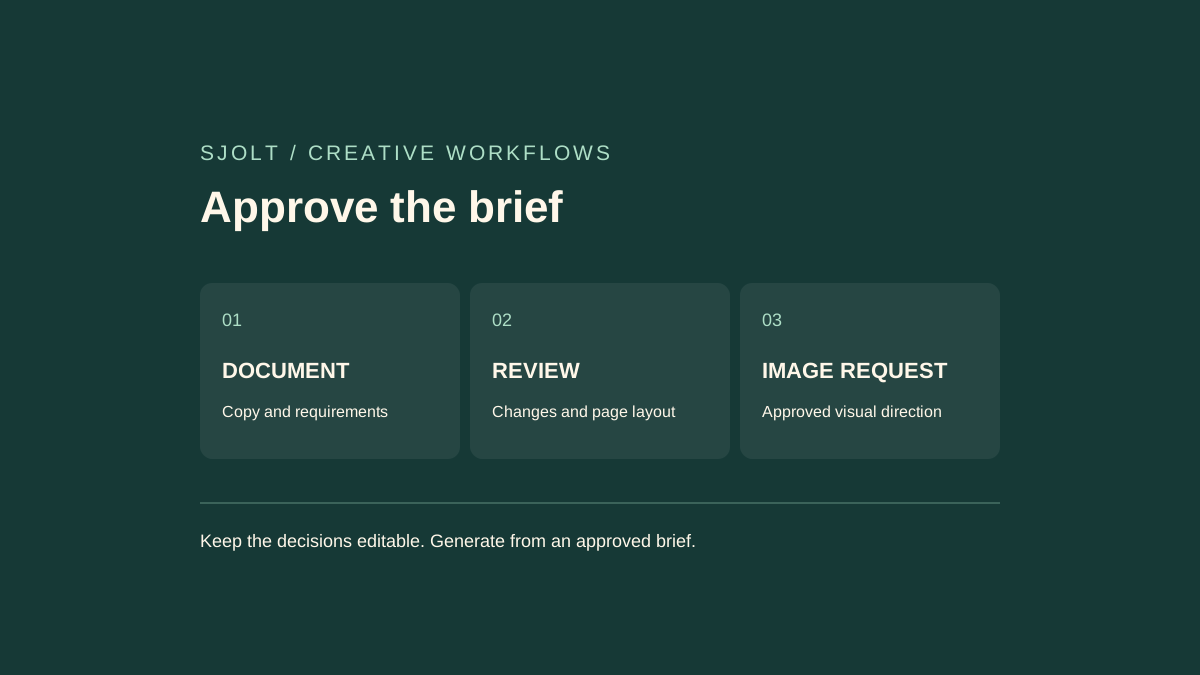
SJolt does not expose WordCraft as a model or a native document-editing endpoint. The practical handoff is the approved brief. For example, Nano Banana 2.1 on SJolt can create an image from text or edit using reference images; it does not return an editable DOCX or preserve WordCraft review comments.
Extract the subject, required composition, aspect ratio, and attributes that must remain accurate. Keep exact legal copy and final typography in the document or layout editor. For a product launch, a useful visual request might reserve the top third for a headline while showing the object clearly below. The approved headline stays editable after the image is chosen.
When the generation task finishes, download and inspect the selected image before inserting it into the review copy. Record its task ID and the brief revision used. That makes a later request such as “use the approved background with the revised headline” possible without regenerating the whole concept.
No WordCraft binary or paid model call was run for this guide. The sources establish the project and documented interfaces; the representative-document test establishes whether a particular release fits your handoff.
Sources & further reading
Take the next idea into production.
Explore the models, test a workflow in the playground, and use the same request in your application.